
📱 Connect TradingView to Discord
Follow this guidelines to connect TradingView to Discord. If you don't have an Pip Sender account yet, you can sign up for a free account here.
Step 1: Get Discord Channel Id
You can receive TradingView alerts in a chat, group, or channel that you manage. In the next step, you'll need to provide that chat Id, group Id, or channel username based on your chosen destination. So let's prepare it first.
- Click the gear icon (User Settings)
- Go to Advanced
- Turn on Developer Mode
- Right-click the channel name where you want to receive TradingView alert
- Click Copy Channel ID
You will get a channel id that looks like 1443126375123456789. Keep it for the next step.
Step 2: Create a Discord connection
- Select Connect Hub in your Dashboard
- In the list of available apps, click Connect button on the Discord app
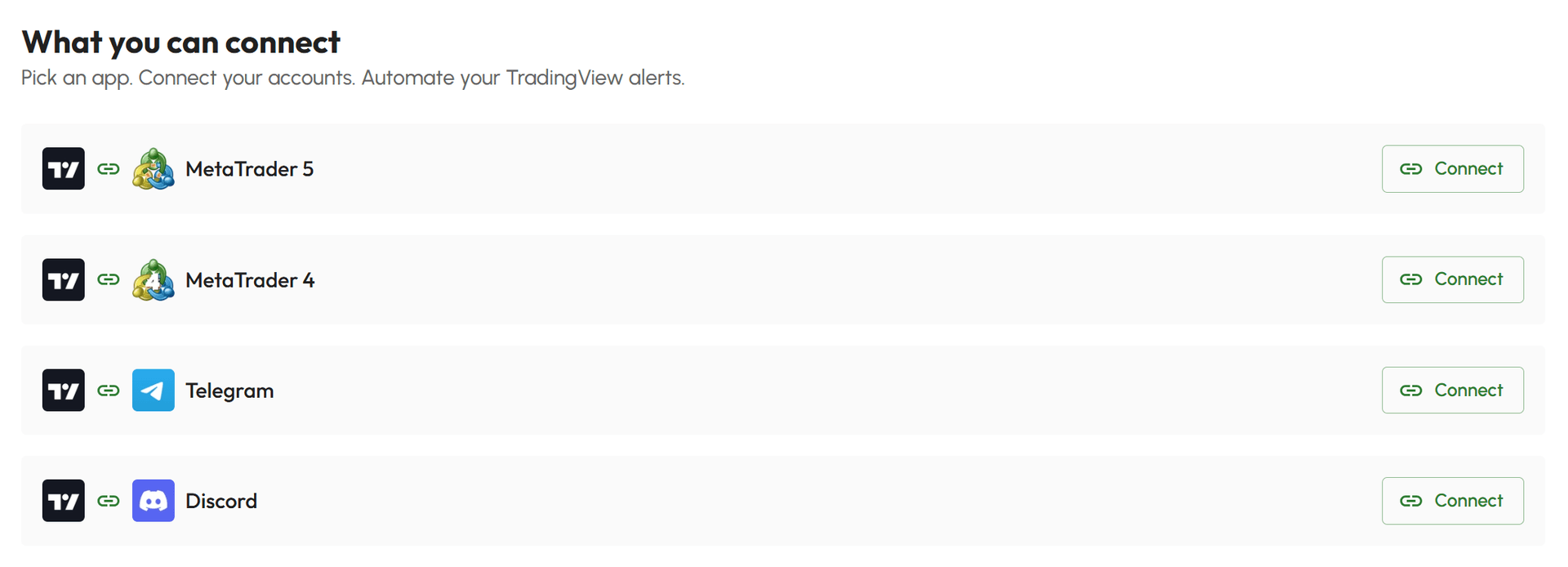
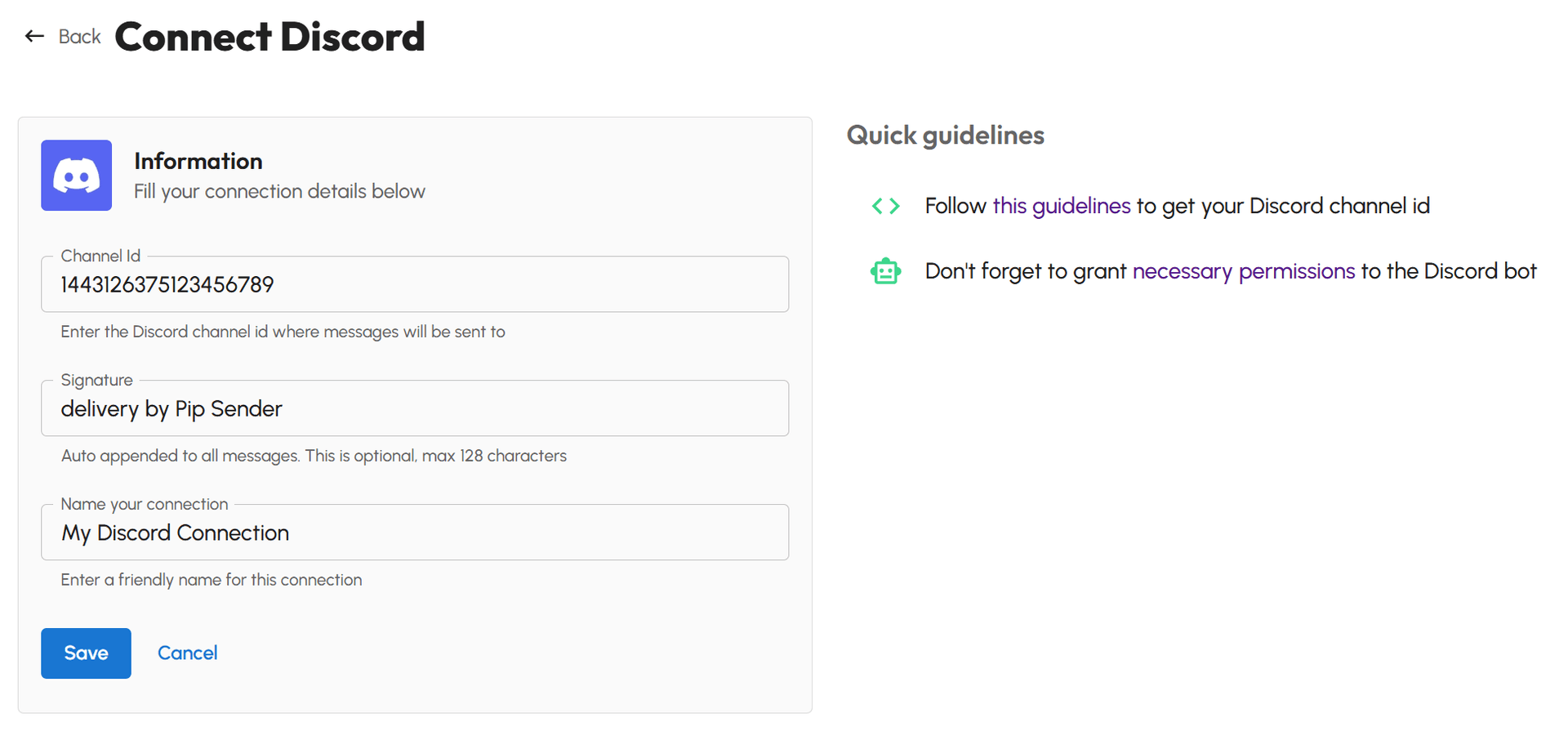
- Fill the form with these info:
- Channel Id: This is where you will receive TradingView alerts. You prepared it in the first step.
- Signature: This is optional. This signature will be added automatically into the end of all messages that send to your Telegram.
- Name your connection: Enter a friendly name for your connection
- Click Save and your TradingView to Discord connection will be created
Step 3: Add Discord bot to your server
Our Discord bot must be added to your server before it can send messages. Follow the instructions below to complete the setup.
- Click the bot invite link: Invite link
- Select the server you want to add the bot to
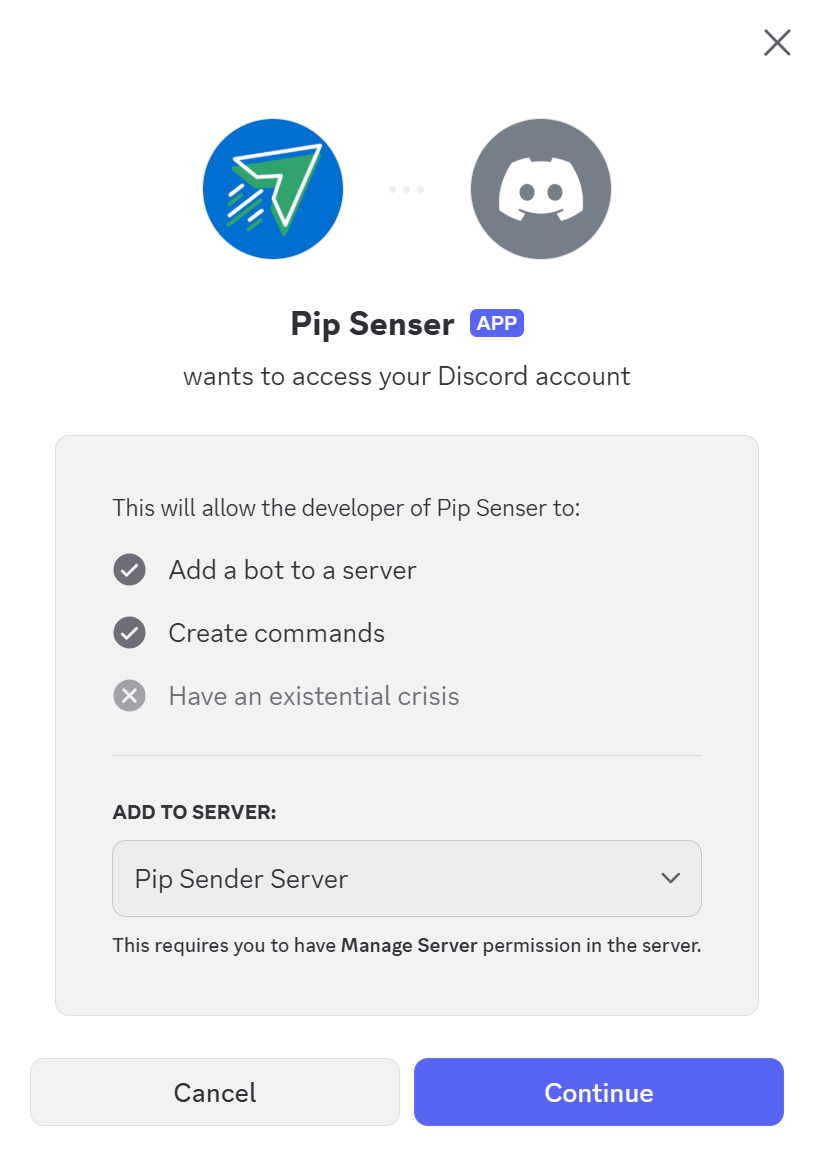
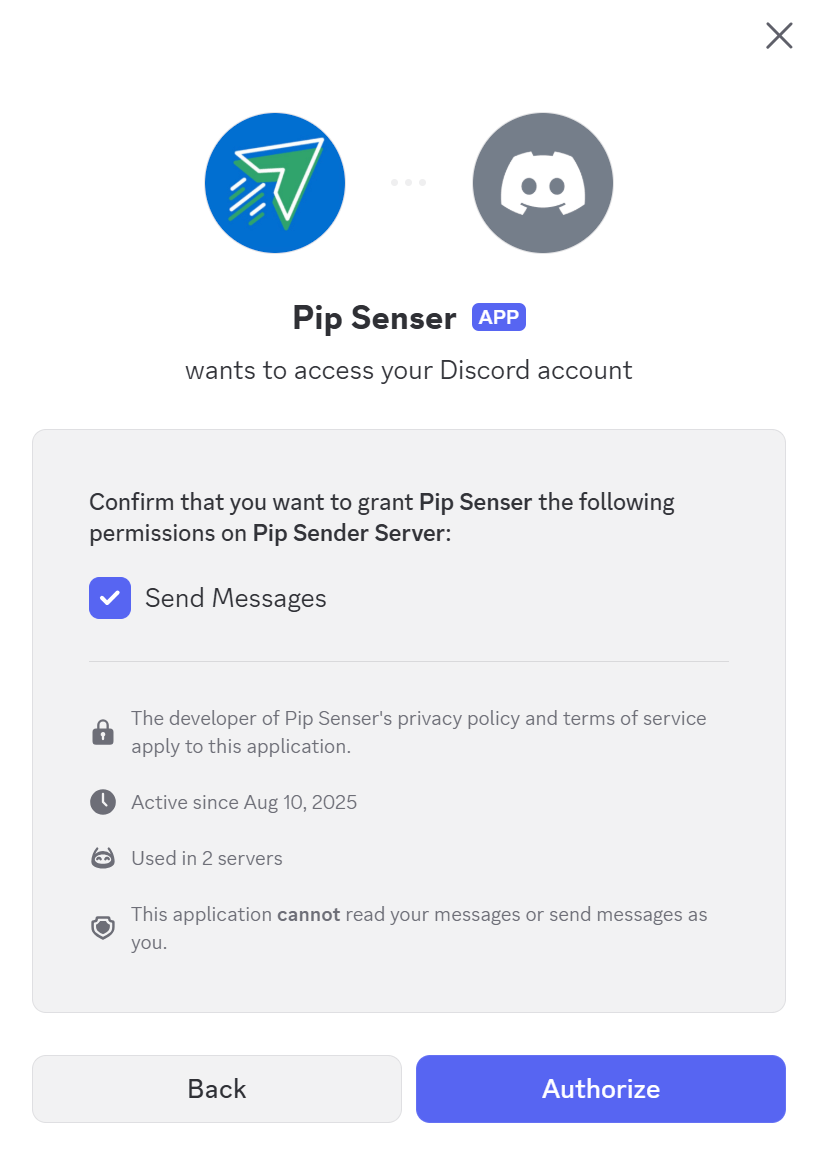
In the next screen, you'll see that it asks for the permission to send messages into your channels so it can deliver alert messages.
- Grant the required permission (enabled by default)
- Click Authorize to complete
Ready to get started? Sign up for an account here and start connect TradingView to Discrod.