
🔗 Manage Connection
What is a connection?
When you connect an account to Pip Sender to receive TradingView alerts, a connection is established.
- You can create and manage your connections from the Dashboard.
- You can create unlimited connections. It mean unlimited MT4, MT5, Telegram or Discord accounts.
- A connection requires alert credits available or an active subscription to be activated. Otherwise, it will be inactive an can't hanle your TradingView alerts.
All actions below are available in your Pip Sender Dashboard. This means you'll need a Pip Sender account. If you don't have one yet, you can sign up for a free account here.
How to create a connection
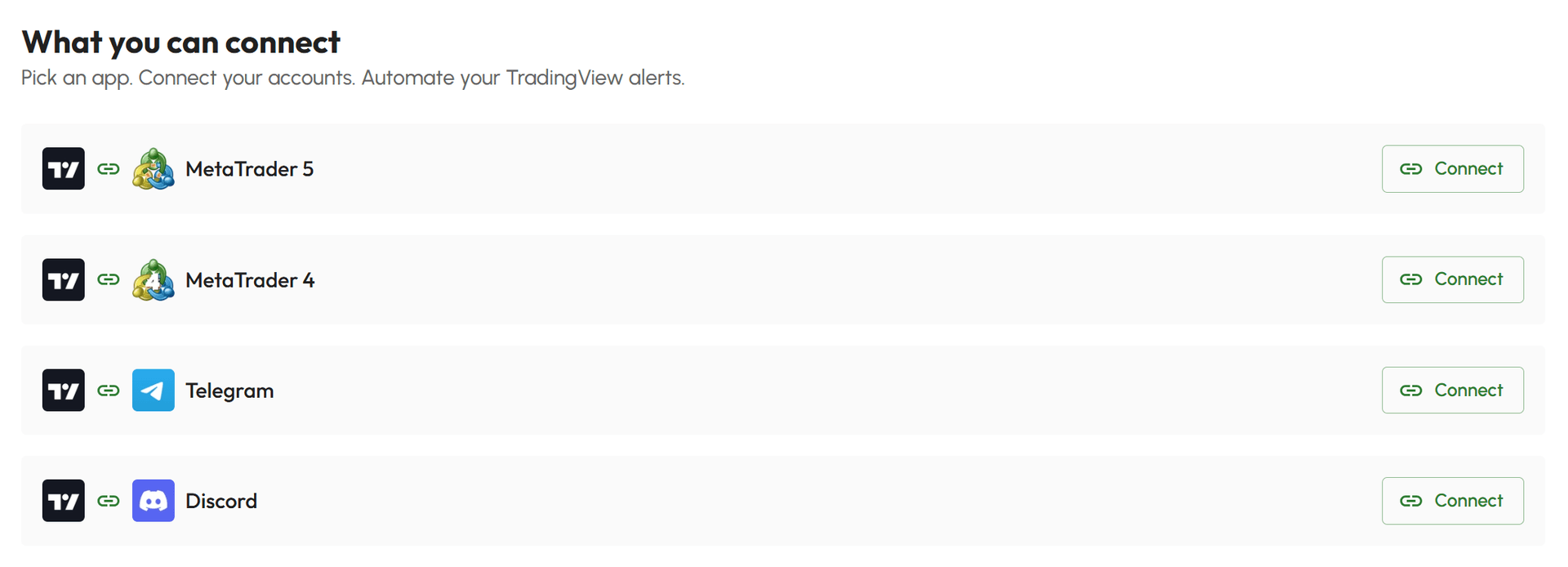
- Select Connect Hub
- In the list of available apps, click Connect button on the app you want to connect
- Fill the form with required information
- Save the form and your connection will be created
How to get connection info
When you have created a connection, list of your connections is available in the Connect Hub as below:
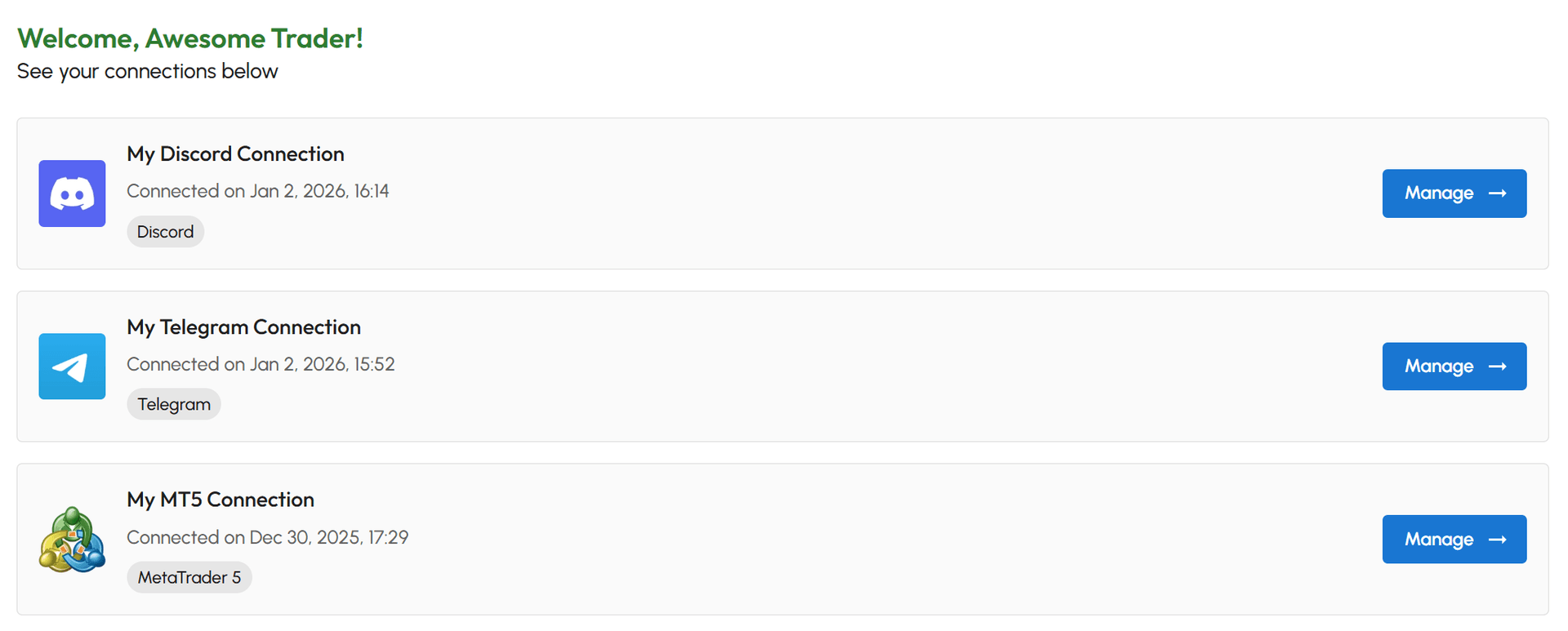
Click Manage button to see your connection details.
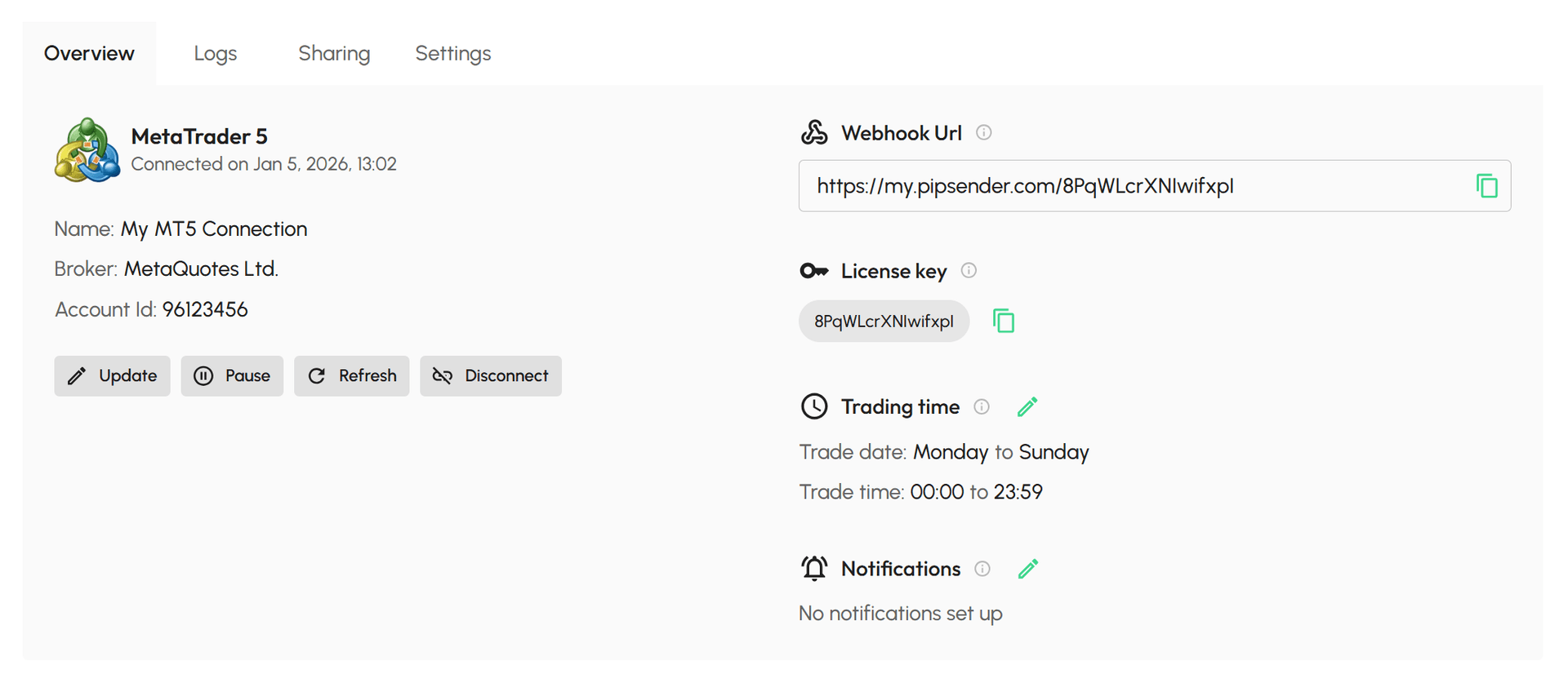
As shown in the image above, your connection details are organized into 4 tabs:
- Overview: Manage and monitor your connection
- Logs: View TradingView alert history
- Sharing: Control signal sharing and broadcasting
- Settings: Access resources and subscription details
There are 2 information available in Overview tab that you usually need to use. Click the Copy button to copy them.
- Webhook Url: You need this when set up your TradingView alerts. Keep your Webhook URL private - anyone with it can send signals to your connected account.
- License Key: You need this to connect your MT4/MT5 account using Pip Receiver (just available in MT4/MT5 connections).
How to manage connection
Refer to the connection info image above, you can easily manage your connection in the Overview tab:
Update account info
- Below account info, click Update button to show the update form
- Edit your account information
- Click Save to save your changes
Pause connection
- Below account info, click Pause button
- Confirm your action
When you pause a connection, all TradingView alerts send to that connection still be logged and available in the history logs but they will not be processed. You can resume the connection at anytime by click the Resume button (available when the connection is paused).
Refresh connection
The Refresh button is just available in MT4/MT5 connections to let you see if the Pip Receiver is connected or not. Just click it to see updated infos.
Disconnect Pip Receiver EA
The Disconnect button is just available in MT4/MT5 connections. It lets you remove Pip Receiver from the Dashboard instead of removing it directly from the MetaTrader terminal..
- Below account info, click Disconnect button
- Confirm your action
Update trading time
- Click Update icon in trading time section to show update form
- Edit trading time
- Click Save to save your changes
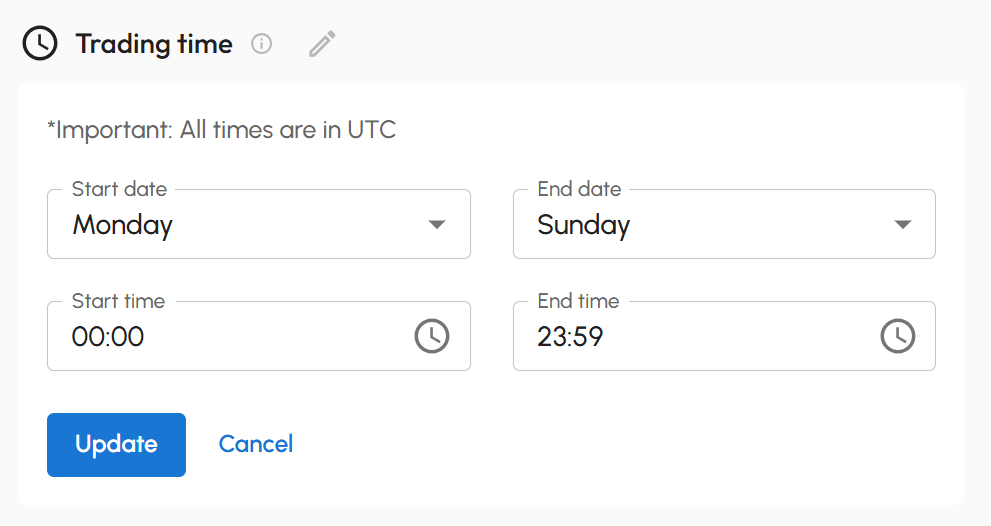
By default, trading time is from Monday to Sunday, 00:00 to 23:59 of each day. This means TradingView alerts are processed 24/7. You can define specific time windows as needed. Alerts received outside these windows will still be logged but will not be processed.
Important note: Trading time filter here is in UTC.
Update notifications
- Click Update icon in notifications section to show update form
- Set notification address for events you want to receive
- Click Save to save your changes
Use email or Telegram chat Id for notifications. Leave blank to disable notifications for that event.
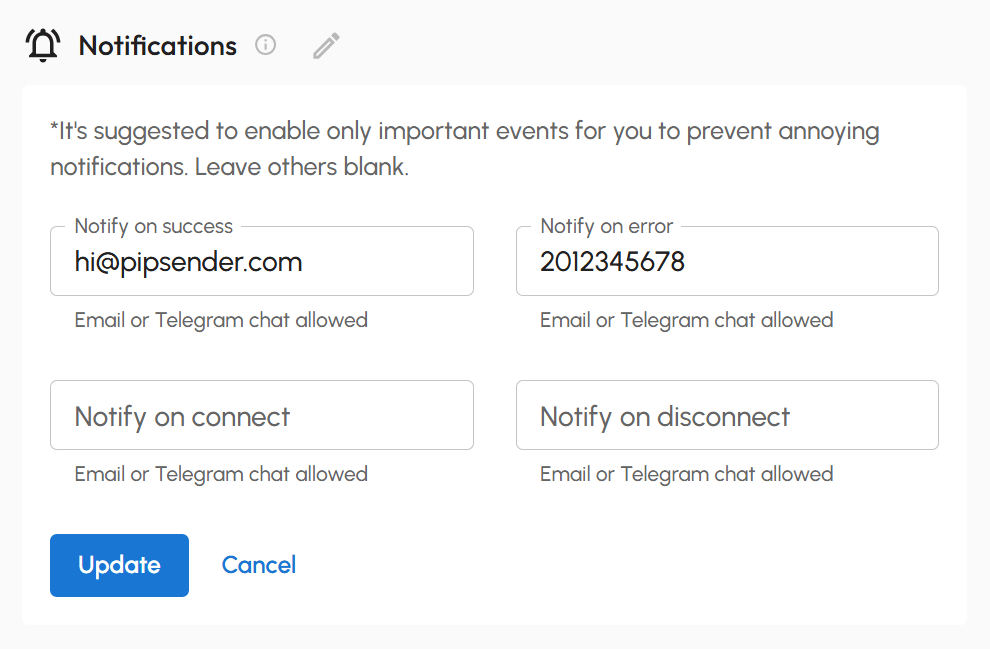
Notification events
- Notify on Success: Notify when a trading signal is processed successfully.
- Notify on Error: Notify when a trading signal encounters an error.
- Notify on Connect: Notify when a new connection is established. Just available on MT4/MT5 connections.
- Notify on Disconnect: Notify when an active connection is disconnected. Just available on MT4/MT5 connections.
Notification channels
- Email: Receive notifications via email.
- Telegram: Receive notifications via Telegram chat. Start a chat with @PipSenderAppBot, type
/chatIdto get chat id and use that chat id as your notification address.
How to share trading signals
You can manage signal sources and signal receivers in Sharing tab of the connection. For more details, see signal sharing.
How to manage subscription
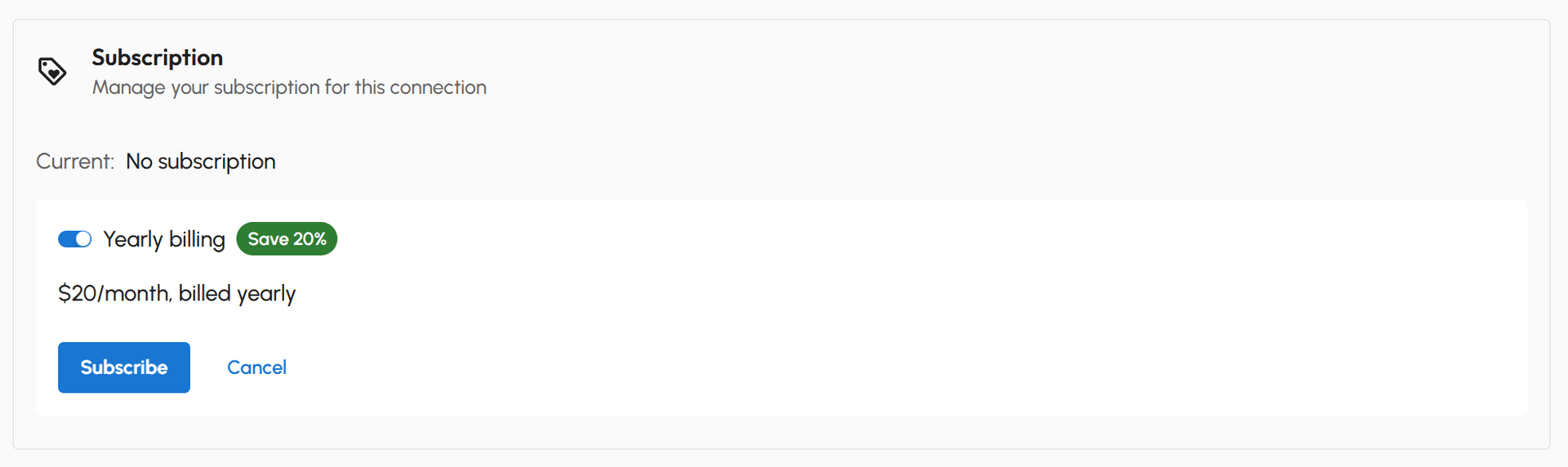
You can manage subscription in the Settings tab of the connection. You can Subscribe, Unsubscribe or switch between Monthly billing and Yearly billing here.
When connection is created and you have available alert credits, it will be activated by default. Otherwise, it will be inactive. When your connection is inactive, you need a subscription to activate it. Just click Subscribe button, you will be redirected to PayPal to complete your subscription.
When you unsubscribe, your connection will remain active until the end of your billing cycle or until your alert credits are used up. After that, the connection will be deactivated.
How to delete connection
You can delete connection in the Settings tab of the connection.
- Scroll to the end of Settings tab
- Click Delete button
- Confirm you action
⚠️ Be careful! All data associated with this connection will be permanently deleted. This action cannot be undone.