
📈 Connect TradingView to MT5
Follow this guidelines to connect TradingView to MT5. If you don't have an Pip Sender account yet, you can sign up for a free account here.
Step 1: Create a MT5 connection
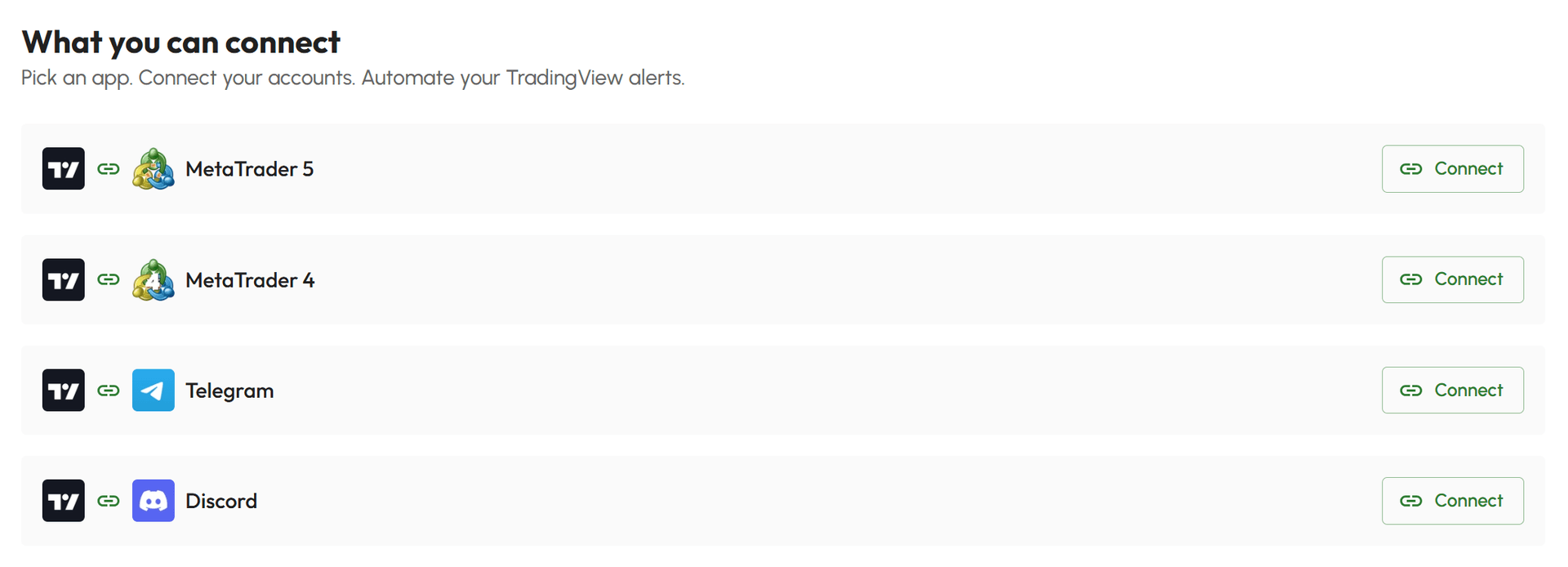
- Select Connect Hub in your Dashboard
- In the list of available apps, click Connect button on the MetaTrade 5 app
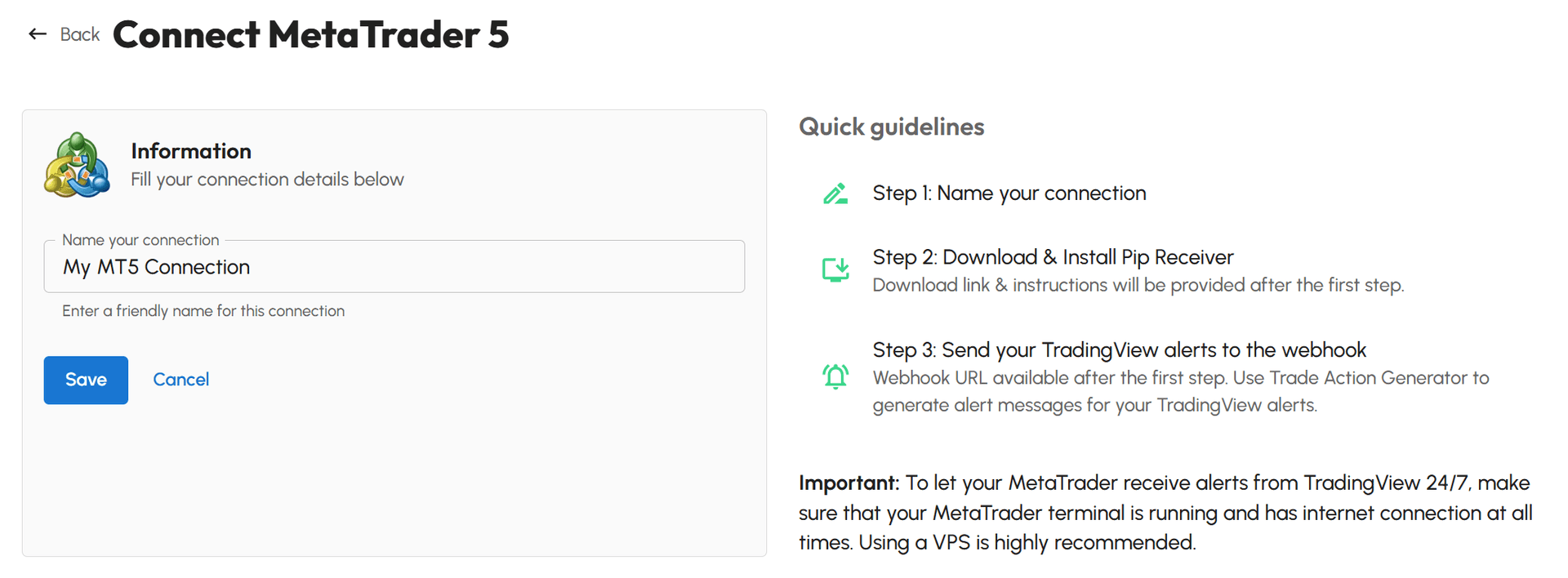
- Fill the form with name of your connection
- Click Save and your TradingView to MT5 connection will be created
Step 2: Download Pip Receiver
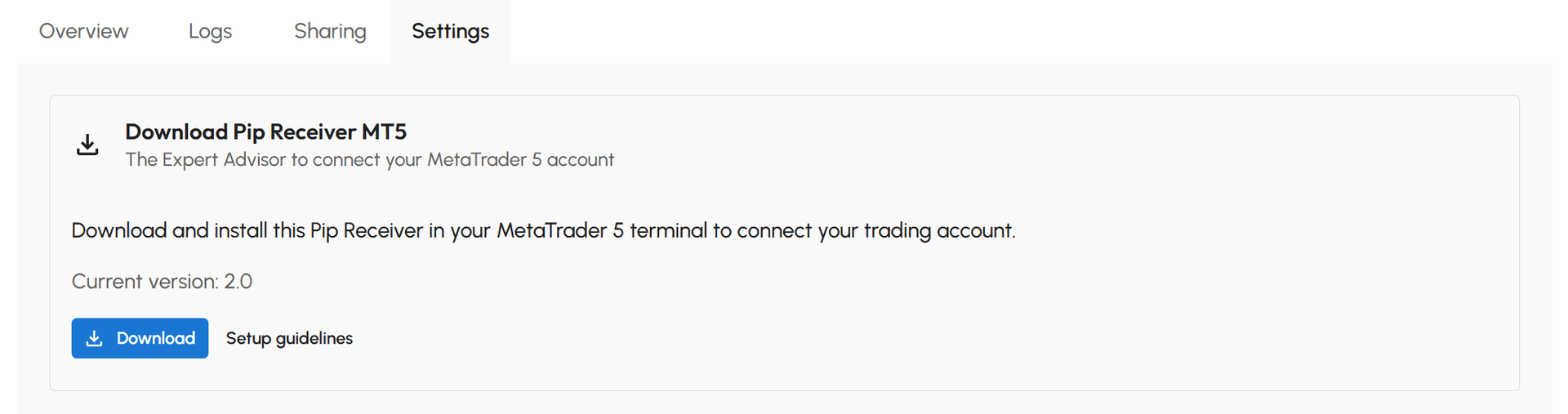
After completing Step 1, you have a TradingView to MT5 connection with information as below picture.
- Go to Settings tab
- Click Download button to download Pip Receiver. You'll receive a Pip Receiver MT5.zip file.
- Extract the zip file above and you have these 2 files:
- Pip Receiver MT5.ex5
- Pip Receiver MT5.dll
Pip Receiver is an Expert Advisor installed in your terminal to manage trades on your trading account. It also allows you to configure advanced features such as symbol mapping, risk management, and scheduled tasks.
Step 3: Install Pip Receiver in MetaTrader terminal
-
Open Expert folder of your MetaTrader terminal
- Open MetaTrader terminal
- Go to File → Open Data Folder
- Navigate to:
MQL5/Experts
-
Copy both of 2 files you downloaded (and extracted) in step 2 above into Expert folder
-
Back to MetaTrader terminal
- In navigator, right click on Expert Advisors
- Click Refresh to show new experts
-
Double-click on Pip Receiver MT5 in the expert list to install
- On the Inputs tab, enter License Key. License Key is available in the Overview tab of your connection (you created it via Pip Sender Dashboard in step 1).
- On Dependencies tab, Enable Allow DLL imports
-
Make sure Allow Algo Trading is turned on in your MetaTrader terminal.
Pip Receiver can be installed on any chart and will process trades for all symbols.
Ready to get started? Sign up for an account here and start connect TradingView to MT5.
Helpful tips
-
Pip Receiver is powerful with many settings, but only License Key is required. Other settings can stay at default initially. Learn how to set them up later in below section.
-
Click Refresh button in your MT5 connection to see if Pip Receiver is connected. If your account details not show, check the Experts tab in MetaTrader to see errors.
-
Pip Receiver must remain running to process trading signals. Using a VPS is highly recommended.
-
Pip Receiver will automatically reconnect after network disconnections. Temporary "Disconnect" → "Connect" messages are normal. However, frequent disconnects may indicate network issues or an unstable VPS.
-
If you can't install the Pip Receiver, check Experts tab in your MetaTrader terminal for details.
-
If you installed the Pip Receiver successfully but no trades processed, check Logs tab of connection in your Pip Sender Dashboard for details.
Common errors
If Pip Receiver is not installed correctly, you will see an error message in the terminal’s Experts log.

Here are some common error messages you may see:
-
No license data provided: It means you didn't provide License Key in Inputs tab. Please provide a valid License Key.
-
Invalid license provided: It means you provided wrong License Key. Check and provide a valid License Key. Go to your Dashboard and click Copy button to prevent mistakes.
-
Same account is already connected: This account is already connected using the same License Key. To avoid duplicate trading signals, this is not allowed.
-
Unable to connect to server: An unknown error occurred while connecting to our server. Please check your internet connection and try again.
Pip Receiver MT5 setup
Below settings are available in latest Pip Receiver version. If your Pip Receiver doesn't look the same, download and install latest version from **Settings* tab in your connection.
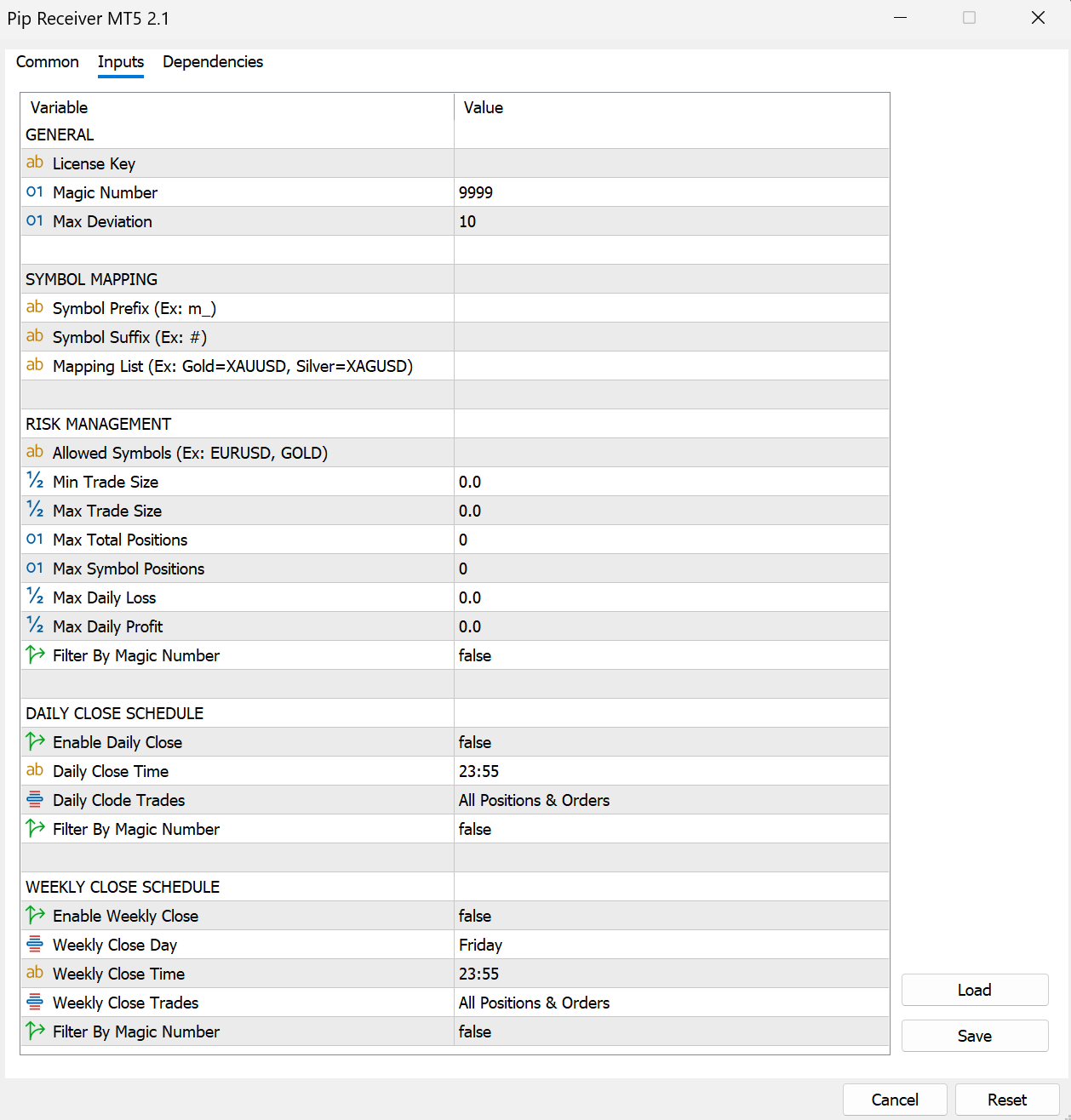
Pip Receiver inputs are grouped into sections. See them below. Only License Key is required. Other settings can stay at default initially.
General
-
License Key: License Key of your MT5 connection.
-
Magic Number: Magic number for all trades. You can use it to filter trades later.
-
Filter By Magic Number: Enable this option to allow Pip Receiver to work only with positions/orders that match the Magic Number specified above. Applied for all calculations below.
-
Max Deviation: Maximum price slippage you are willing to accept when placing an order.
Symbol Mapping
-
Symbol Prefix: The prefix that will be added to the symbol in your alert message.
For example:- You receive the message with
symbol=EURUSD - Symbol Prefix is m_ → Trades will be placed with the
symbol=m_EURUSD
- You receive the message with
-
Symbol Suffix: The suffix that will be added to the symbol in your alert message. For example:
- You receive the message with
symbol=GOLD - Symbol Suffix is # → Trades will be placed with the
symbol=GOLD#
- You receive the message with
-
Mapping List: Use this to map special symbol names.
For example: You may receive alerts from TradingView or signal sources using names like Gold or Silver, while your broker uses XAUUSD and XAGUSD.
- You receive the message with
symbol=GOLD - Your mapping list is Gold=XAUUSD, Silver=XAUUSD → Trades will be placed with the
symbol=XAUUSD
Notes:
- Separate multiple mappings with commas
- Use the format
sourceSymbol=destinationSymbolfor each item - If Symbol Prefix and/or Symbol Suffix is configured, they are applied after the mapping list is processed
- You receive the message with
All symbol mapping options are case-insensitive and automatically mapped.
Risk Management
-
Allowed symbols: List of allowed symbols. Signals with symbols not in list will be ignored.
- Leave it blank to allow all symbols
- Separate multiple symbols by commas
- Symbol mapping is processed before checking for allowed symbols. So using the final symbol here.
For example:- Symbol Suffix is #
- Mapping list is Gold=XAUUSD, Silver=XAUUSD
→ To allow only Gold trades, useAllowed symbols = XAUUSD#
-
Min Trade Size: Minimum trade size. Smaller sizes will be rounded up. Use 0 as no limit.
-
Max Trade Size: Maximum trade size. Larger sizes will be rounded down. Use 0 as no limit.
-
Max Opening Positions: Maximum opening positions. Use 0 as no limit.
-
Max Symbol Positions: Maximum opening positions per symbol. Use 0 as no limit.
-
Max Unique Symbols: Maximum unique symbols of open positions. Use 0 as no limit.
-
Max Daily Loss: Maximum total daily loss of opening positions. Fee and commission are not included. Use 0 as no limit.
-
Max Daily Profit: Maximum total daily profit of opening positions. Fee and commission are not included. Use 0 as no limit.
-
Pyramiding: Controls how many positions the strategy can open on the same symbol
- Allowed: No limit. Multiple positions can be opened on the same symbol.
- Allowed in profit: Additional positions can be opened only if the total profit of existing positions is greater or equal 0.
- Only one Buy or Sell: Only one position per symbol is allowed. New orders will be rejected.
- Only one per side: Allows one Buy (long) and one Sell (short) position per symbol (maximum of two positions). New orders will be rejected.
-
Close On Reverse: Defines how the strategy handles positions when an opposite signal appears.
- Disabled: No action is taken; existing positions remain open and new signals are processed normally.
- Netting (Close old, ignore new): Closes existing positions when a reverse signal occurs, but does not open a new position.
- Hedging (Close old, open new): Closes existing positions and immediately opens a new position in the opposite direction.
Important note: All Risk Management filters are applied before placing new order.
Schedule
-
Daily Close Trades: Specify which trades will be closed daily.
- Disabled: Do not close trades daily.
- All Positions & Orders: Close all open positions and pending orders.
- Opening Positions: Close only open positions, keep pending orders.
- Winning Positions: Close only positions that are in profit, keep losing positions and pending orders.
- Losing Positions: Close only losing positions, keep winning positions and pending orders.
- Pending Orders: Close only pending orders, keep open positions.
-
Daily Close Time: The time to process the daily close schedule.
- Use the time in hour:minute format.
- It follows the 24-hour format. Maximum hour value is 23 and maximum minute value is 59
- Time is trade server time
-
Weekly Close Trades: Specify which trades will be closed weekly.
- Disabled: Do not close trades weekly.
- All Positions & Orders: Close all open positions and pending orders.
- Opening Positions: Close only open positions, keep pending orders.
- Winning Positions: Close only positions that are in profit, keep losing positions and pending orders.
- Losing Positions: Close only losing positions, keep winning positions and pending orders.
- Pending Orders: Close only pending orders, keep open positions.
-
Weekly Close Day: The weekday to process the weekly close schedule.
-
Weekly Close Time: The time to process the weekly close schedule.
- Use the time in hour:minute format.
- It follows the 24-hour format. Maximum hour value is 23 and maximum minute value is 59
- Time is trade server time
Important note: To ensure your trades are processed by your broker, schedule the daily/weekly close before the broker's market close time (if applicable).