
🔔 Send TradingView alerts to Webhook
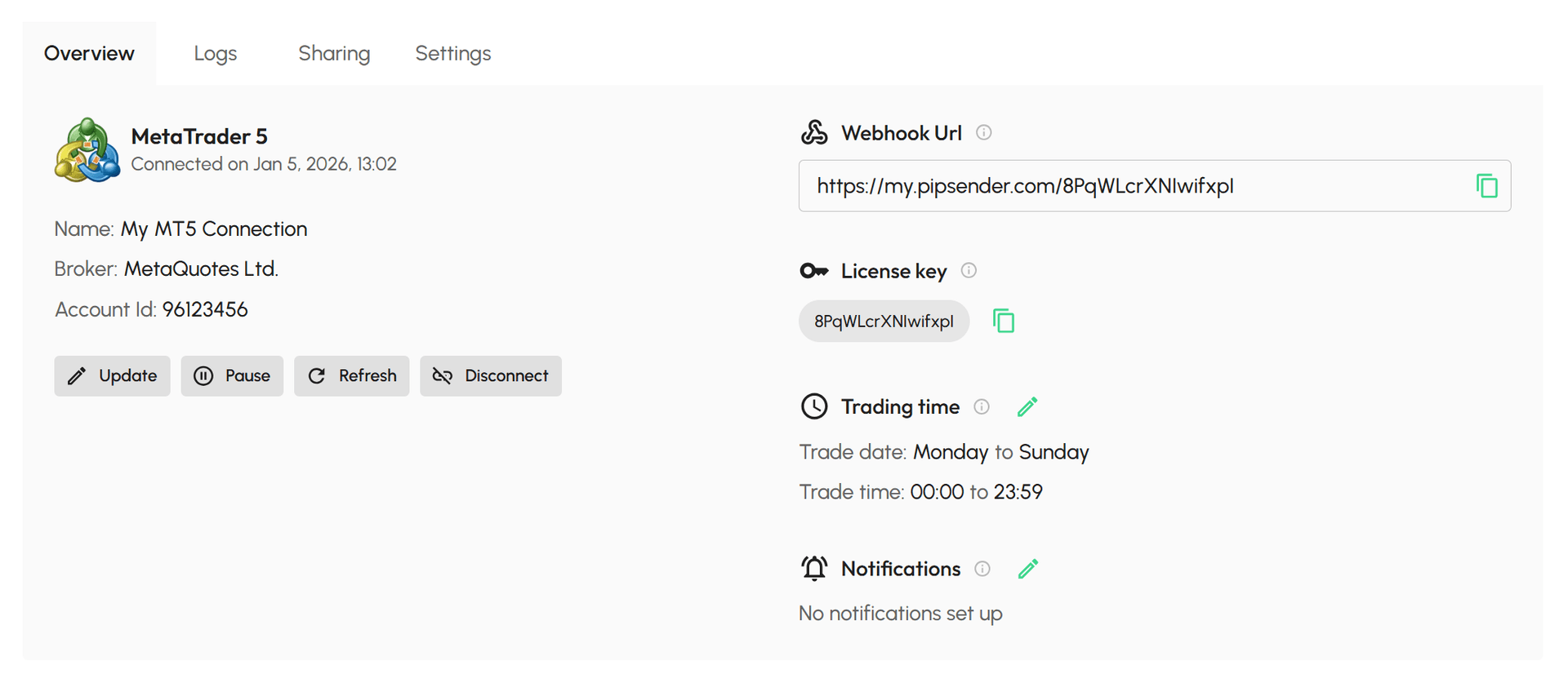
Get Webhook URL from Pip Sender
- Select Connection Hub
- Find the connection you want to send alerts to and click Manage button
- In Overview tab, under Webhook Url section, click Copy button to copy the Webhook Url
Prepare alert message
When sending TradingView alerts to Telegram or Discord, you can include any message you like, up to 512 characters.
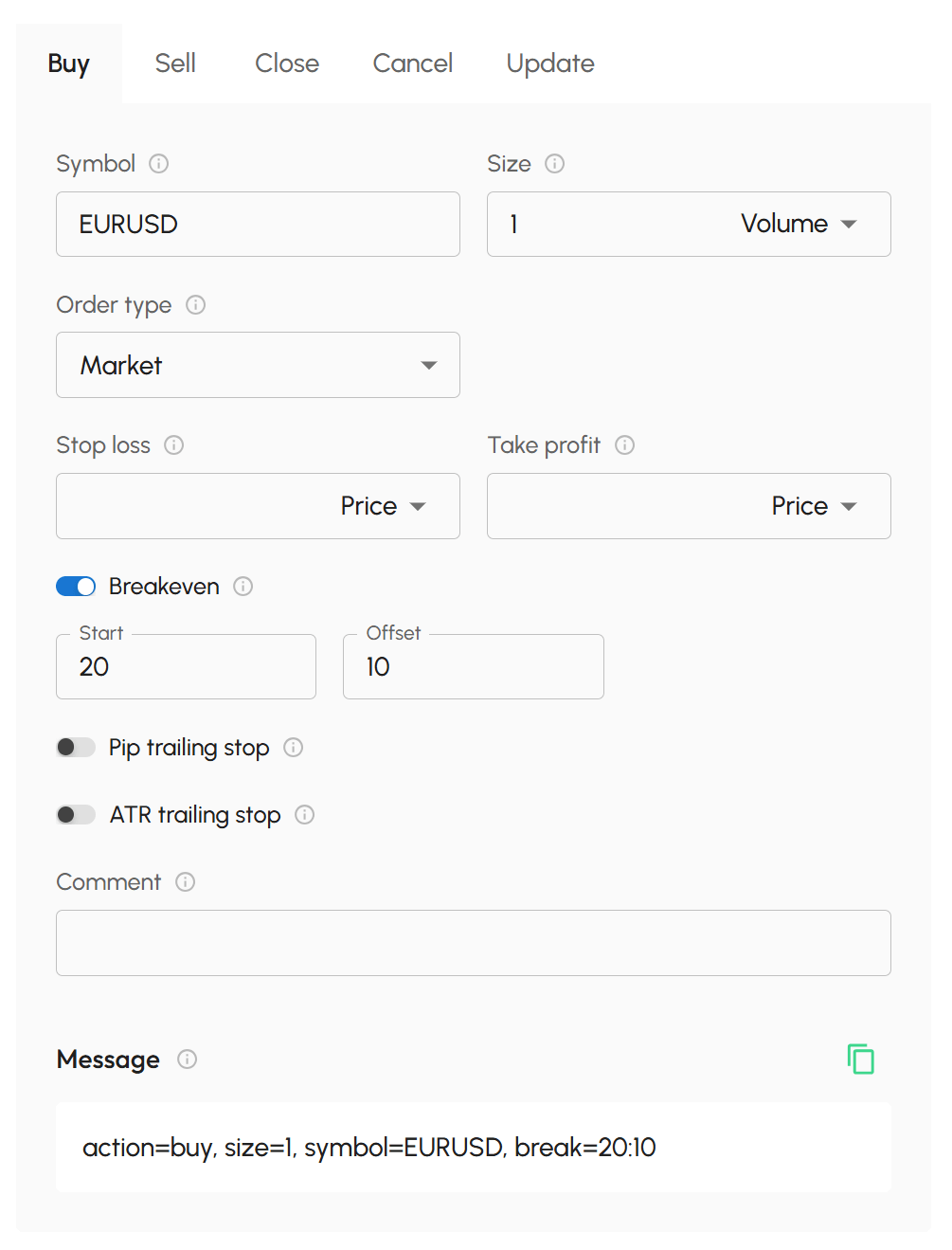
To trigger trades on MT4/MT5 connections using TradingView alerts, a well-formatted message is required. You don't need to learn or remember alert syntax. Right below your connection information, you will see the Trade Action Generator, use it to create well-formatted messages with trade instructions by just some clicks.
You can learn more about Trade Action Generator here and message sytax here.
Create an Alert in TradingView
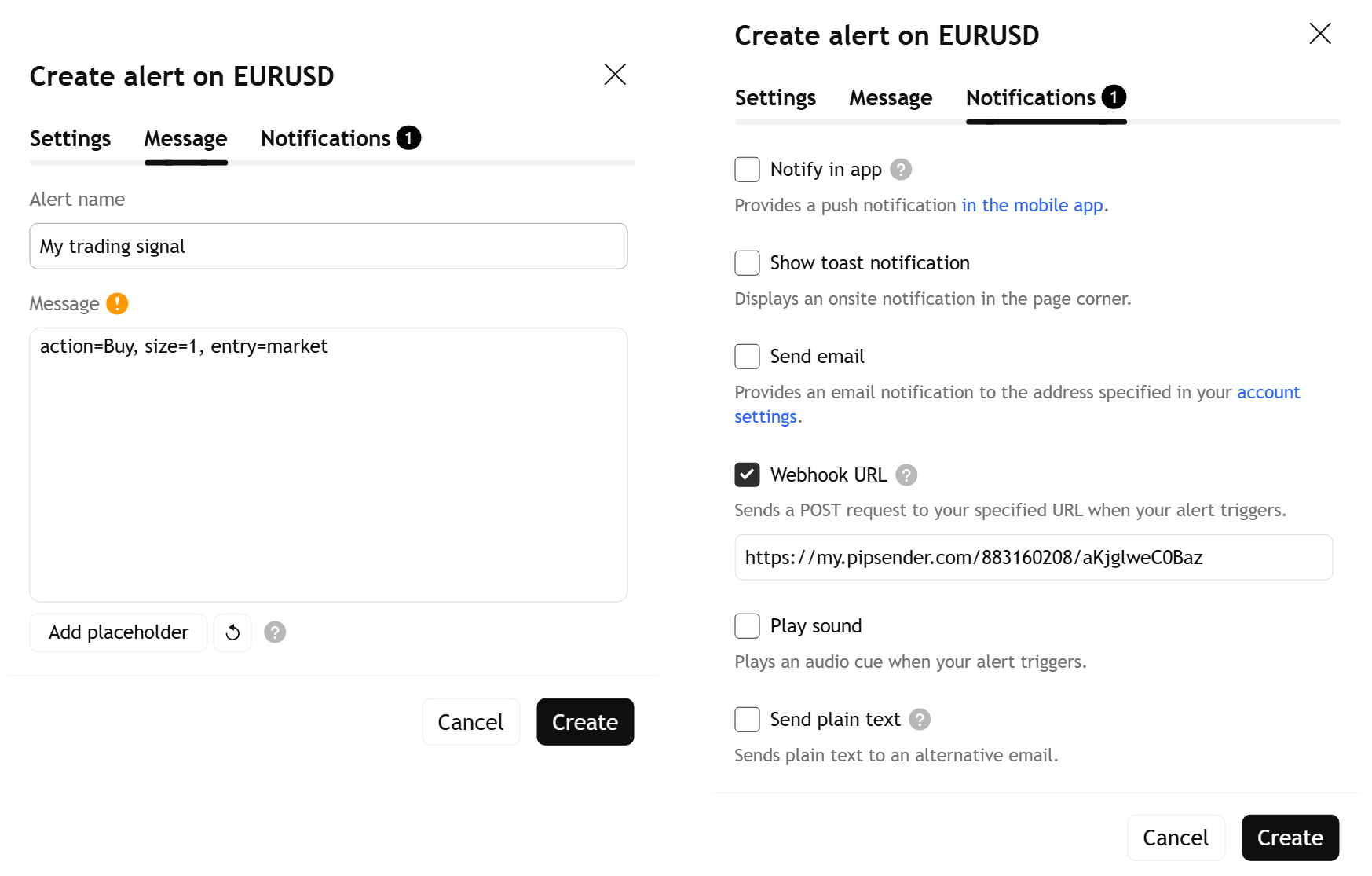
- Open a TradingView chart
- Click the Alert icon
- In the Settings tab, configure your alert conditions
- In the Message tab, paste message with trade instructions you prepared into the Message field
- In the Notifications tab, enable Webhook URL and paste the Webhook URL you copied
- Click Create to finish
Important notes
- Keep your Webhook URL private - anyone with it can send signals to your connected account.
- If you're new, start with a demo account and send some test alerts before going live.
- You'll need a paid TradingView plan to use Webhook notifications.
Troubleshooting Tips
If nothing happens when your TradingView alert fires:
- Check the alert log in TradingView to confirm the alert actually triggered
- Verify the Webhook URL to make sure it's correct and linked to the intended connection
- Check Logs tab in your connection for message format errors, inactive connection. filtered, or other issues